PadKeys
Small desk.
Room to think.
Keep your notes on iPad. Type on your laptop.
Widen PadKeys to type. Narrow it to scroll.
Your PDF stays open. Your questions go to your laptop.
How it works
Set up once, then just type.
PadKeys stays keyboard-first. No IP addresses, no ports, no same-Wi-Fi setup — open the helper, scan its QR code, and your iPad becomes the keyboard.
Install on iPad
Open PadKeys on your iPad in landscape when the iPad app is ready.
Install the Helper
Download PadKeys Helper on your laptop and open it.
Scan the QR code
Scan the helper's QR code from PadKeys on iPad. Keep Bluetooth on — that's it.
Start typing
Type on the full-screen keyboard and nudge the pointer with the quick trackpad.
Download Helper
Choose your laptop.
Install the helper, open it, then scan the QR code from PadKeys on iPad.
macOS
Windows
Windows SmartScreen warning? See how to open the helper
Pricing
Try it free, then own it for good.
PadKeys Pro · one-time payment
Your 14-day free trial starts after the first successful connection. After the trial, unlock lifetime use with PadKeys Pro in the iPad app.
- ✓ Full-screen iPad keyboard
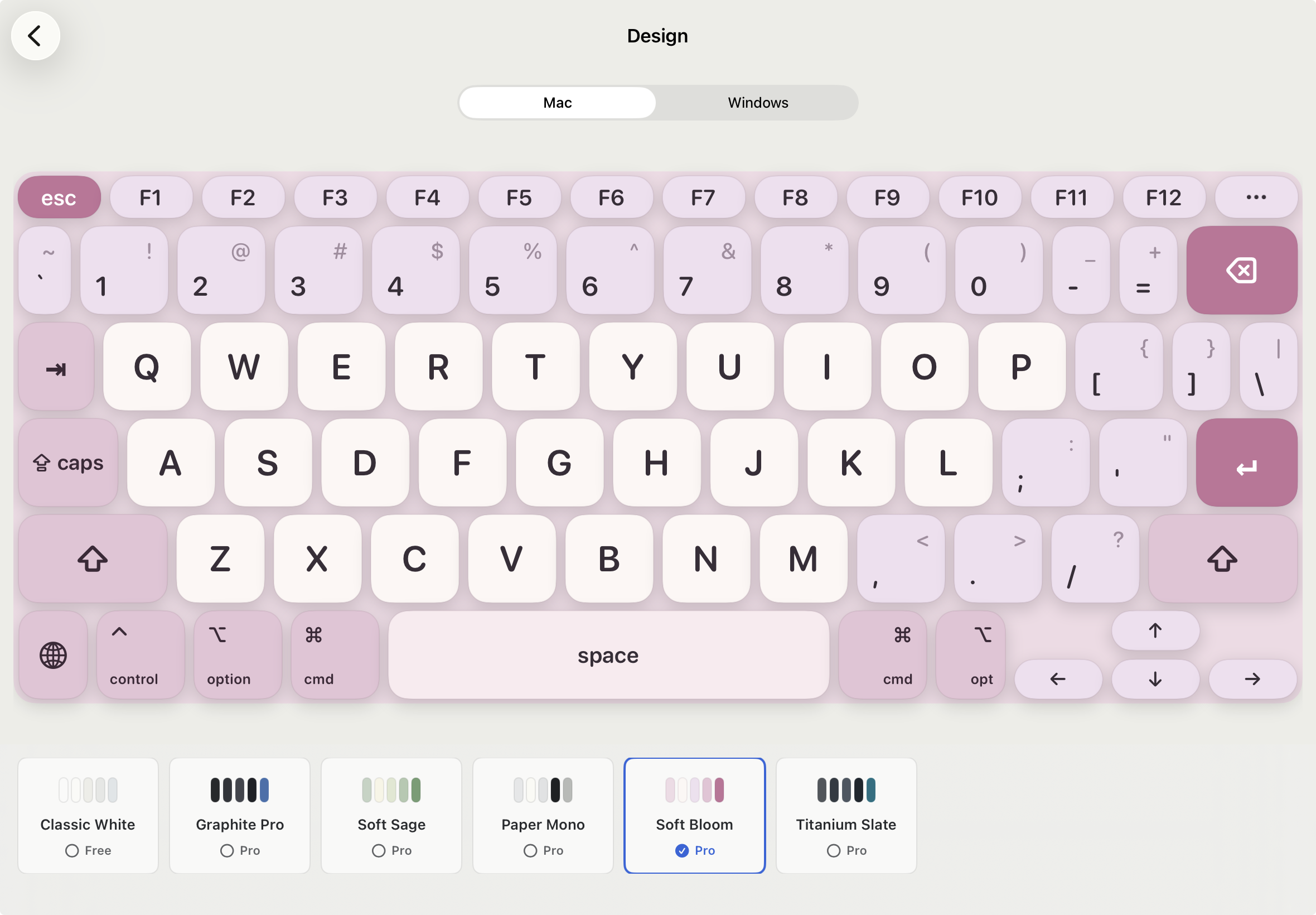
- ✓ Full keyboard design unlock
- ✓ Lightweight quick trackpad
- ✓ One-time purchase · no subscription
Purchase happens inside the iPad app via Apple. There is no web checkout.
Privacy & trust
Your keystrokes stay between your iPad and your laptop.
PadKeys pairs with the helper over Bluetooth. The helper shows a QR code, and the iPad connects directly to your own laptop.
-
No cloud accountNo helper cloud account required to pair and type.
-
Direct Bluetooth pairingKeyboard and pointer events are sent only to the paired helper.
-
Permissions, for one reasonAccess is needed only so the helper can send keyboard and mouse input on your laptop.
Get PadKeys
Ready when your desk is tight.
The iPad app link is coming soon. For now, download the helper for your laptop.
iPad app link coming soon.