Frequently asked questions
Most setup questions are about permissions. PadKeys pairs over Bluetooth — open the helper on your laptop and scan its QR code. No IP address, port, or same Wi-Fi is required.
macOS
Why does PadKeys still say Accessibility is required?▾
PadKeys Mac Helper needs Accessibility permission so it can send keyboard and mouse input to your Mac.
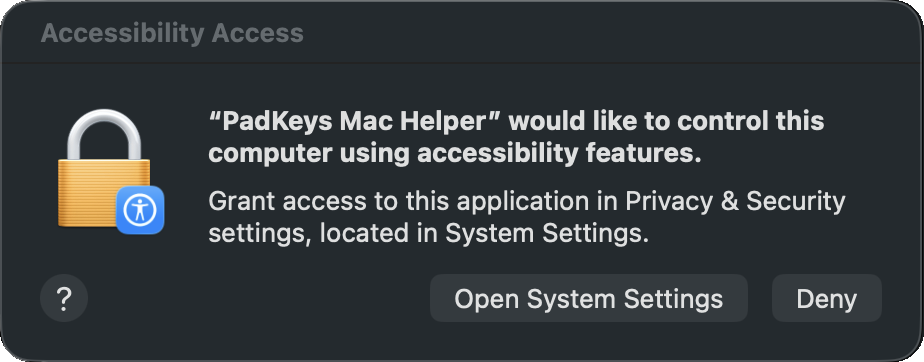
If you used an older test build, macOS may remember that test build separately from the official helper. Remove the old entry and allow the official helper again:
- Quit PadKeys Mac Helper.
- Open System Settings.
- Go to Privacy & Security → Accessibility.
- Remove any old PadKeys or PadKeysMacHelper entries.
- Open
/Applications/PadKeys Mac Helper.app. - In the helper, choose Open Accessibility Settings.
- Enable PadKeys Mac Helper.
- Quit and reopen PadKeys Mac Helper.

Official releases are signed with a stable Developer ID and use the same bundle identifier, so future official updates should keep the same permission.
Should I run the helper from Downloads?▾
No. Install it into Applications first:
- Open the PadKeys DMG.
- Drag PadKeys Mac Helper.app to Applications.
- Run PadKeys Mac Helper from Applications.
- Grant Accessibility permission.
- Scan the QR code from the iPad app.
Running from Downloads can make support harder, especially if you later replace or move the app.
Accessibility is enabled but typing still does not work.▾
Try this in order:
- Quit and reopen PadKeys Mac Helper.
- Toggle PadKeys Mac Helper off and on in Accessibility.
- Remove PadKeys Mac Helper from Accessibility, then add it again.
- Make sure you are running the app from
/Applications. - Restart the Mac if System Settings does not refresh the permission state.
Why does PadKeys Mac Helper ask for Bluetooth?▾
PadKeys Mac Helper uses Bluetooth to find and connect to your iPad after you scan the QR code. Same Wi-Fi is not required.
If Bluetooth is off or permission is denied, turn Bluetooth on, then allow PadKeys Mac Helper in System Settings → Privacy & Security → Bluetooth. In the helper, you can also choose Restart Bluetooth after turning it back on.
Windows
Why does PadKeys need Bluetooth on Windows?▾
PadKeys Helper connects to your iPad over Bluetooth after you scan the QR code. Keep Bluetooth on, open the helper, then scan the QR code from PadKeys on iPad.
Do not add PadKeys as a keyboard in Windows Bluetooth settings — pairing happens only inside the PadKeys iPad app.
Why does Windows ask for network access?▾
PadKeys Helper shows a QR code and listens on your local network so your iPad can connect. Allow access on Private networks when Windows Firewall asks.
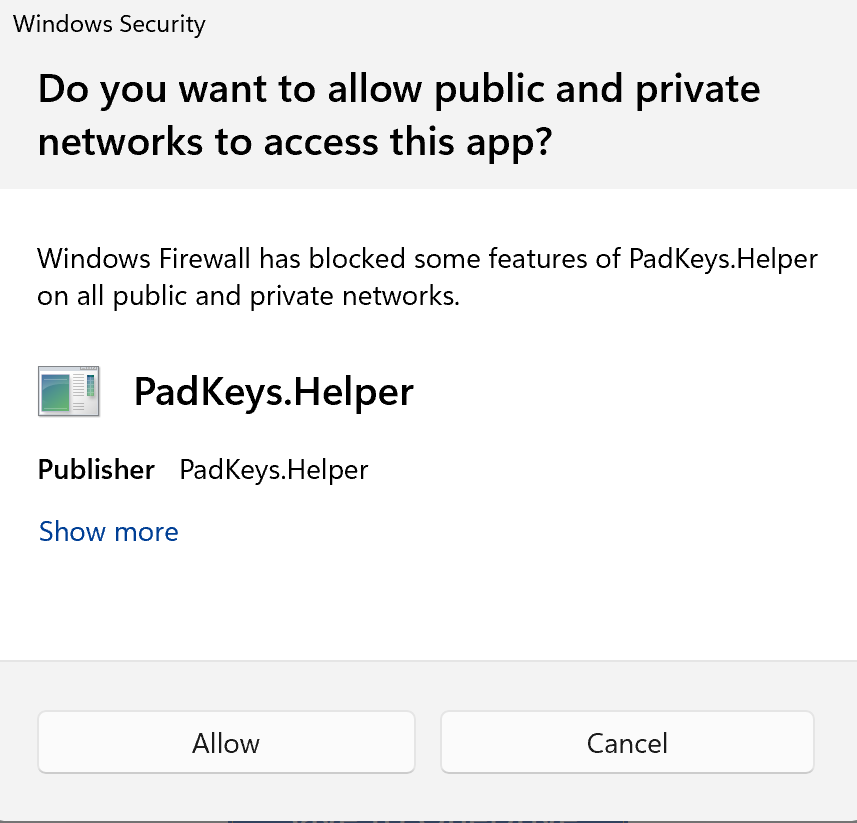
Do not allow Public network access unless you intentionally use PadKeys on a trusted public network.
Why does Windows warn before opening the helper?▾
Windows may show a SmartScreen warning because the early PadKeys Windows helper is unsigned. Download it only from the official PadKeys website.
If SmartScreen appears, choose More info, then Run anyway. Only do this when the file name and download source match the official PadKeys download page.
iPad
Do I need to type an IP address or port?▾
No. PadKeys does not use a local-network address. Open the helper on your Mac or Windows PC, keep Bluetooth on, then scan the helper QR code from the iPad app.
Does PadKeys need the same Wi-Fi?▾
No. PadKeys pairs over Bluetooth. Keep the iPad and laptop close enough for Bluetooth, with Bluetooth turned on on both devices.
How do I send text to my laptop?▾
Use the text bar above the keyboard in the iPad app. Type or paste the text you want to move, then tap Send.
PadKeys places that text on your laptop clipboard through PadKeys Helper. It does not paste automatically, so choose the destination on your laptop and paste with Command+V on Mac or Ctrl+V on Windows.
How do I send an image to my laptop?▾
Use the image button in the iPad text bar to choose a photo, or paste an image from the iPad clipboard, then tap Send.
PadKeys places one image on your laptop clipboard so you can paste it into the app or document you choose. Very large images may be reduced before sending.
Image clipboard sending is available with PadKeys Helper on both Mac and Windows.
How does the Quick Trackpad work?▾
Use the lower trackpad area for quick pointer control while keeping the keyboard as the main surface.
- Drag with one finger to move the pointer.
- Tap the trackpad area for a left click.
- Drag with two fingers to scroll.
- Use the Left and Right buttons below the trackpad when you need a held click or a right click.
You can adjust trackpad sensitivity from the PadKeys menu in the iPad app.
The QR scan or connection isn't working.▾
Check these in order:
- Turn Bluetooth on on the iPad and the laptop.
- Keep the two devices close to each other.
- Make sure PadKeys Helper is running and showing a QR code.
- On iPad, allow Bluetooth for PadKeys when iPadOS asks. If you skipped it, open Settings > Privacy & Security > Bluetooth and turn on PadKeys.
- On Mac, allow Bluetooth and Accessibility for PadKeys Mac Helper.
- Scan the QR code in the helper window again.
- If the code expired or was already used, choose New Pairing Code in the helper, then scan the new code.
- If it still fails, quit the helper and open it again.